
Published by PlasmaX, the organization behind the PlasmaX web app, maintaining this site since 2023. The VLC URL-playback steps and troubleshooting guidance on this page were last reviewed on under our editorial and fact-checking process. Spotted an error? Request a correction.
To play a video in VLC using a URL, open VLC, go to Media > Open Network Stream, paste your video URL, and click Play. That's it — three clicks and you're streaming any video directly through VLC's powerful media engine.
VLC has been maintained by the non-profit VideoLAN project since 2001, and it remains one of the most capable free tools for playing online videos. Unlike browser players that bog down with ads and limited controls, VLC gives you complete playback control with broad codec support and customizable streaming options.
Whether you're accessing YouTube videos, free IPTV services, or embedded website content, VLC handles virtually any network stream format. The process works identically across Windows, Mac, and mobile devices — making it your universal solution for URL-based video playback in 2026.
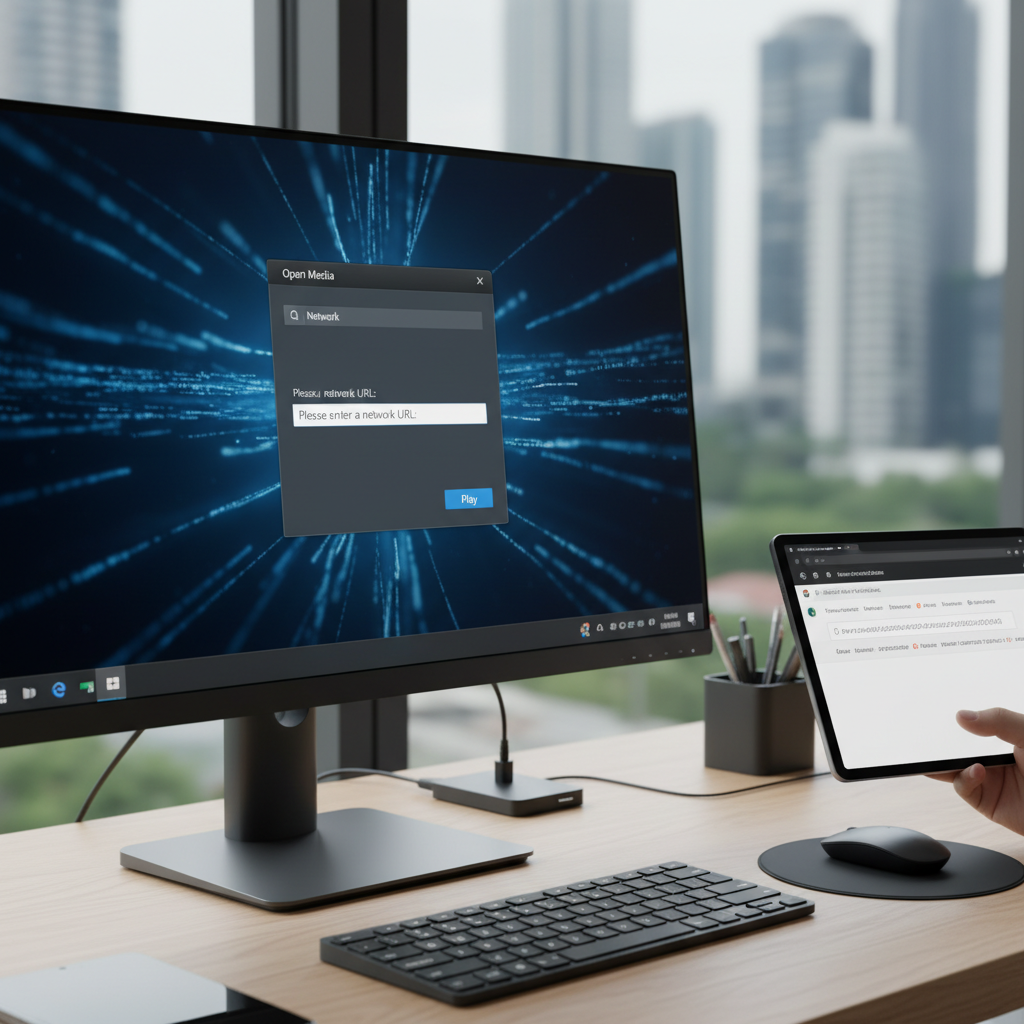
Here is the exact process to stream any video URL through VLC. This method works on both Windows and macOS with current VLC builds.
Download VLC 3.0.23 or newer from videolan.org — the official VideoLAN download page — the 2026 releases include enhanced network protocol support and improved streaming stability for modern video formats. Version details verified against videolan.org on September 20, 2026.
Windows users: Click "Media" in the top menu, then select "Open Network Stream" (or press Ctrl+N). Mac users: Go to "File" > "Open Network" or use Command+N. You'll see a dialog box with a "Network" tab already selected.
Copy your video URL and paste it into the "Please enter a network URL" field. VLC accepts HTTP, HTTPS, RTSP, MMS, and dozens of other protocols automatically. Note: Direct http(s) URLs to video files (.mp4, .m3u8) and streams you have the right to open are what this field is designed for; YouTube pages generally no longer work here (see the YouTube section below).
The interface shows a dropdown for "Protocol" but you rarely need to change this. VLC detects the correct protocol from your URL format.
Click the "Play" button and VLC begins buffering your stream. Most videos start playing within 2-5 seconds depending on your connection speed and the server's response time.
Different video sources require slightly different approaches. The steps below reflect VLC's documented network-streaming behavior in current builds.
YouTube playback inside VLC has become unreliable: the video platform changed how it serves video years ago, and VLC's built-in support no longer works for most videos. If a YouTube URL fails to load or shows an error, that is expected behavior, not a problem with your setup.
For YouTube content, the dependable option is to watch on the platform itself or through its official app, both of which support the creator directly. Age-restricted and members-only videos require authentication that VLC cannot provide, and attempts to work around that are not supported.
M3U8 streams are VLC's specialty — these HTTP Live Streaming (HLS) playlists work flawlessly with the network stream feature. Simply paste your M3U8 URL and VLC handles the segmented video chunks automatically.
For IPTV streams without subscriptions, M3U playlist files contain multiple channel URLs. VLC loads the entire playlist, letting you navigate between channels using the "Playlist" view (Ctrl+L on Windows, Command+L on Mac).
Tip: If your M3U stream buffers frequently, increase VLC's network caching to 3000ms in Tools > Preferences > Input/Codecs > Network Caching.
Playing an embedded video in VLC requires a direct video URL, and the lawful way to get one depends on where the video lives. If a site offers an official download button, a share link, or an API for developers, use that — those are the paths the publisher intends.
Respect what the publisher allows: extracting a hidden stream from a page's code to bypass the site's own player can violate its terms of service and, for licensed content, the rights of the creator. DRM-protected content from Netflix, Hulu, or similar services will not work in VLC at all — those require authenticated sessions VLC cannot replicate.
For videos you have the right to open — your own uploads, workplace or school media servers, public-domain archives, or streams a service explicitly provides as direct links — VLC plays the direct .mp4 or .m3u8 URL immediately.
Before troubleshooting, check whether your URL uses a protocol VLC’s input layer actually accepts. Per VideoLAN’s official features list, VLC’s network inputs include HTTP/HTTPS and FTP sources, Apple HLS (.m3u8) and MPEG-DASH adaptive streams, RTSP, RTP (unicast and multicast), raw UDP, and legacy MMS — verified against videolan.org’s documented input-media list in September 2026.
| URL / protocol | Plays in VLC? | Notes |
|---|---|---|
| http:// / https:// direct media (.mp4, .mkv, .webm, .ts) | Yes | The most reliable case — paste the direct file URL |
| .m3u8 (Apple HLS) | Yes | Adaptive HTTP streaming; VLC resolves segments automatically |
| .mpd (MPEG-DASH) | Yes | Adaptive streaming over HTTP |
| rtsp:// | Yes | Common for IP cameras and live feeds |
| rtp:// and udp:// (unicast/multicast) | Yes | IPTV-style streams; multicast depends on your network |
| mms:// (legacy) | Yes | Older Windows Media streams |
| Regular webpage URLs (HTML pages, YouTube watch links) | Usually no | VLC needs the media URL, not the page — see the URL-types section above |
| DRM-protected URLs | No | Subscription platforms encrypt their streams by design |
Beyond basic playback, VLC offers powerful customization options that dramatically improve your streaming experience. These features separate VLC from basic media players.
Default caching often causes stuttering with slower connections. Navigate to Tools > Preferences > Input/Codecs and increase "Network Caching" to 3000-5000ms for smoother playback. Higher values mean longer initial buffering but fewer interruptions.
For live streams, keep caching under 2000ms to minimize delay; around 1500ms is a common choice for IPTV channels where near real-time viewing matters.
VLC supports HTTP and SOCKS proxy configuration. Go to Tools > Preferences > Input/Codecs > Access Modules > HTTP(S) and enter your proxy details.
This setting is intended for networks that route traffic through a proxy — for example some corporate or campus networks where direct connections are unavailable. Configure your proxy settings once and VLC applies them to all network streams automatically. Do not use proxies to evade a service's regional restrictions; that typically breaches the service's terms.
VLC can record any network stream directly to your hard drive. In the "Open Network Stream" dialog, click the dropdown arrow next to "Play" and select "Stream." Choose "File" as destination and pick your output format.
Recording is useful for archiving your own broadcasts, a workplace stream you are authorized to keep, or public-domain media. Recording quality matches the original stream — no re-encoding losses. Only record content you have the right to save, and follow each service's terms.
Once a stream is running, these shortcuts (documented on the official VideoLAN hotkeys reference, verified September 2026) cover the controls network-stream viewers use most. On macOS, the Open Network dialog is Command+N — confirmed in VLC’s own macOS menu source, where the File menu’s network-open item is bound to the “n” key equivalent.
| Action | Windows / Linux | macOS |
|---|---|---|
| Open Network Stream dialog | Ctrl+N | Command+N |
| Show / hide playlist | Ctrl+L | Command+L |
| Play / pause | Space | Space |
| Stop | S | S |
| Jump 5 seconds back / forward | Shift+← / Shift+→ | Command+Ctrl+← / → (60s) or Option+← / → (10s) |
| Volume up / down | Ctrl+↑ / Ctrl+↓ | Command+↑ / Command+↓ |
| Mute | M | M |
| Toggle fullscreen | F | F |
| Take snapshot | Shift+S | Command+Alt+S |
| Quit | Ctrl+Q | Command+Q |
Even VLC encounters streaming hiccups. Here are the most common fixes for frequent network streaming problems.
If a stream still refuses to play after these fixes, the IPTV troubleshooting decision tree helps you isolate the cause in three quick checks — a known-good stream on the same device, the same URL in a second player, and a second device — so you can tell a dead source from a VLC-specific problem.
This error typically indicates an invalid URL or server timeout. First, verify the URL works in a browser. If it does, try increasing network timeout in VLC's advanced preferences (Tools > Preferences > Show All > Input/Codecs > Access Modules > HTTP(S)).
Quick fix: Change "HTTP User Agent" to match your browser's user agent string — some servers block VLC's default identifier.
Constant buffering usually stems from insufficient caching or bandwidth limitations. Increase network caching to 5000ms and lower video quality if the stream offers multiple resolutions.
For persistent issues, enable "Skip frames" in Video settings to maintain smooth playback during bandwidth dips. This sacrifices some visual quality but prevents complete freezing.
Network streams sometimes develop sync issues during playback. Press J or K during playback to adjust audio delay in real-time (50ms increments). Most sync problems require 100-300ms adjustment.
For permanent fixes, set default audio delay in Tools > Preferences > Audio > Audio desynchronization compensation.
VLC cannot bypass DRM encryption from major streaming services — this is intentional and legal. Regional availability is a licensing decision by the service, not a technical fault, and circumventing it with proxies or VPNs typically violates the service's terms.
Remember: Always respect content creators' rights and terms of service when accessing restricted content.
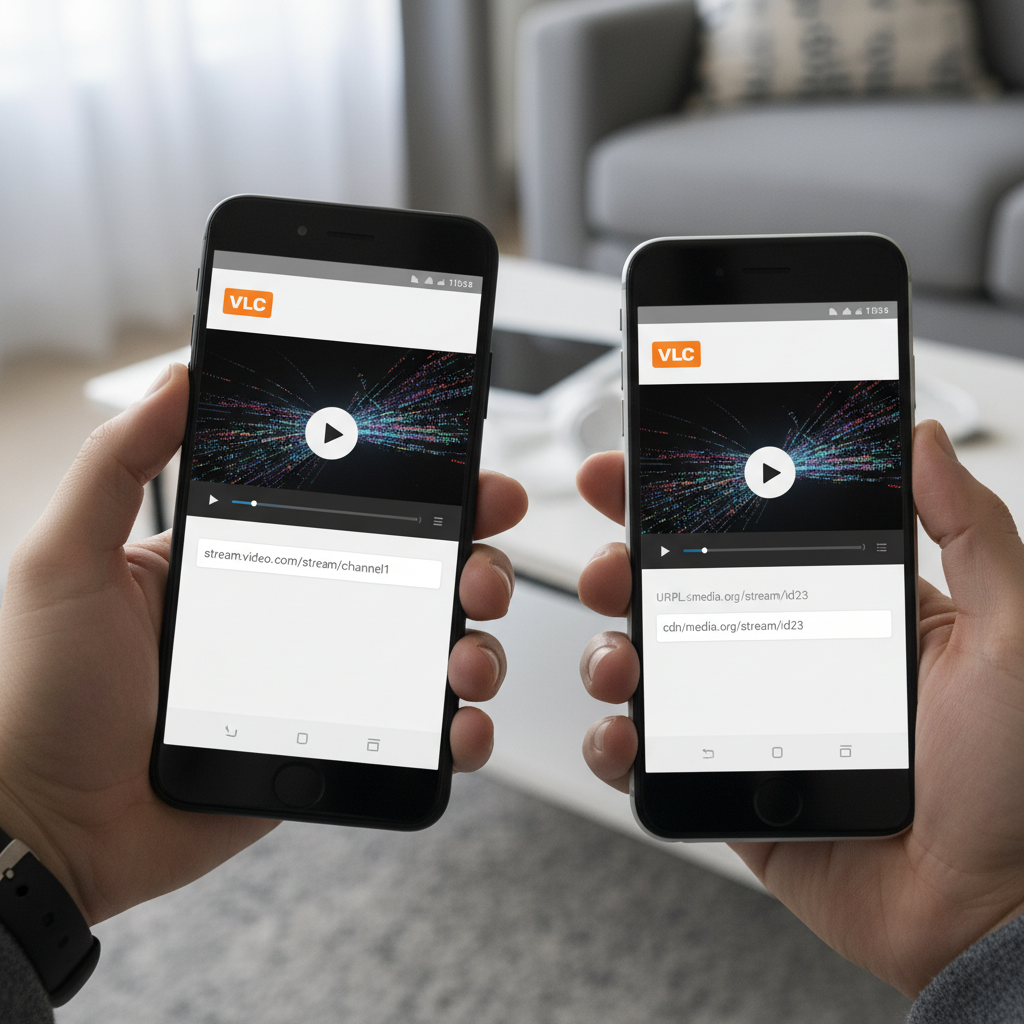
Mobile VLC apps mirror desktop functionality with touch-optimized interfaces. The core network streaming process remains identical across platforms.
Open VLC for Android and tap the three-line menu icon. Select "Stream" from the side menu, then tap the "Network Stream" tab. Paste your URL in the text field and tap the play button.
Android advantage: VLC integrates with Android's sharing system, so you can "Share" video URLs from other apps directly to VLC for immediate playback. This streamlines the process significantly compared to copy-paste methods.
For IPTV setup, Android VLC handles M3U playlists exceptionally well with gesture-based channel switching.
Launch VLC on iOS and tap "Network" in the bottom navigation bar. Enter your video URL in the "Network URL" field and tap "Open Network Stream." iOS VLC supports the same protocols as desktop versions.
iOS limitation: Apple's sandboxing prevents some advanced features like proxy configuration. However, basic network streaming works flawlessly with standard HTTP/HTTPS URLs.
Use iOS's "Shortcuts" app to create one-tap VLC streaming for frequently accessed URLs — a huge time-saver for regular channel streaming.
Across user reports, developer documentation, and independent codec benchmarks, VLC consistently stands out for network streaming. Here is why it remains the default recommendation.
VLC plays virtually everything — from obscure video codecs to experimental streaming protocols. Unlike browser players limited by web standards, VLC leverages native codec libraries for superior compatibility and performance.
No ads, no autoplay interference, no browser crashes affecting your video. VLC runs independently with dedicated system resources, ensuring stable playback even when browsing resource-intensive websites simultaneously.
VLC's playlist system organizes your network streams alongside local media files. Create custom playlists mixing YouTube videos, IPTV channels, and local content for seamless viewing experiences.
VLC remains the ultimate solution for playing any video URL with unmatched format support and customization options. The 2026 builds offer enhanced stability and broader protocol compatibility than ever before.
Start with the basic Media > Open Network Stream workflow, then explore advanced features like caching optimization and stream recording. Once you experience VLC's power for network streaming, browser-based players feel primitive by comparison.
Master these techniques and you'll handle any streaming scenario with confidence — from simple YouTube videos to complex IPTV configurations.
To open a video from a URL in VLC: Launch VLC, click Media > Open Network Stream, paste your video URL, and click Play. This three-step process works with virtually any video format or streaming protocol.
Q: How do I open a video from a URL in VLC?
Open VLC Media Player, navigate to Media > Open Network Stream (Ctrl+N), paste your video URL into the network field, and click Play. VLC automatically detects the protocol and begins streaming within seconds.
Q: How to play website video on VLC?
You need a direct video URL the publisher allows you to use — an official download option, share link, or developer API. Paste that URL into VLC's network stream dialog (Media > Open Network Stream). DRM-protected content won't work, and extracting hidden stream URLs from a page's code can violate the site's terms.
Q: How to stream VLC over LAN?
This involves streaming FROM VLC TO other devices, not playing URLs IN VLC. Go to Media > Stream, select your media file, choose "Stream" instead of "Play," configure HTTP or RTSP output, and set your local network IP. Other devices can then access the stream using your computer's IP address.
Q: How to open m3u URL in VLC?
M3U URLs open identically to other network streams: Media > Open Network Stream, paste the M3U URL, and click Play. VLC loads the playlist automatically, allowing channel navigation through the Playlist view (Ctrl+L). M3U8 streams work the same way with enhanced compatibility.