To check your internet speed, open a trusted tool such as Speedtest.net or Fast.com, start the test, and note the download speed, upload speed, and latency. Test on the device and connection you actually use for streaming whenever possible.
Important: A speed test measures your connection; it does not verify a streaming service, supply channels or playlists, or establish viewing rights. Use a player only with content and credentials you are authorized to access.

Published by PlasmaX, the organization behind the PlasmaX web app, maintaining this site since 2023. This internet speed test guide was last reviewed on under our editorial and fact-checking process. Spotted an error? Request a correction.
Before you even think about running that test, let’s get one thing straight: those numbers are the lifeblood of your IPTV experience. Your internet connection is the foundation for everything you watch. It's the difference between kicking back to enjoy a movie in stunning 4K and spending your night staring at a buffering wheel of doom.
The speed your Internet Service Provider (ISP) advertises? Think of that as a best-case scenario, not the day-to-day reality you actually get.
What you'll uncover when you test your speed tells a much bigger story. Here are the metrics that really matter:
A solid, stable internet connection is non-negotiable for seamless streaming. It's no surprise that the market for tools that measure internet performance is booming. This just shows how vital it is for people to know if they're actually getting the performance they need for things like IPTV.
If you want to get into the nitty-gritty of what speeds you need for different video qualities, we've got you covered. Check out our complete guide on the ideal internet speed for streaming.
Here’s a quick look at what a typical result from a speed test site looks like.
This test shows a fantastic download speed, which is exactly what you want for streaming. But don't ignore the other numbers! The upload and ping results are just as critical for your overall internet performance.
Getting a reliable speed test reading isn't as simple as firing up the first website you find and hitting "Go." If you want to know what your connection is really capable of, you need to clear the deck first. It's about giving the test a clean, quiet environment to do its thing.
Think about it like this: you wouldn't test your car's top speed while hauling a trailer up a mountain during a blizzard. The same logic applies here. Testing your internet while a bunch of other apps are secretly sipping bandwidth in the background will only give you a disappointing number that isn't the whole truth.
First things first, shut down all the digital "noise" on the device you're using for the test. That means closing every background application you can find. We're talking about streaming services, cloud sync tools like Dropbox or Google Drive, and especially any downloads or software updates chugging along silently. These are the usual suspects that hog your bandwidth and skew the results.
Next, cast a wider net and look at your whole home network. Kick every other device off the Wi-Fi, just for a few minutes. That includes your phone, your partner's tablet, the smart TV in the living room, and that gaming console your kid is on. The goal here is to give your testing device an exclusive, VIP lane straight to the internet.
Pro Tip: For the most honest, no-excuses result, forget Wi-Fi for a moment. Grab an Ethernet cable and plug your computer directly into your router. This completely bypasses any wireless weirdness or interference, showing you the pure, raw speed your provider is actually delivering to your home. This is the number that really counts.
Of course, in the real world, you’re probably using Wi-Fi for your IPTV player. If a wired connection is out of the question and your TV is stuck in a Wi-Fi dead zone, a simple extender can be a total game-changer. The TP-Link AC750 Wi-Fi Extender is a popular choice on Amazon; it can work wonders in boosting a weak signal to the other side of a house, making sure a streaming box gets all the juice it needs.
These steps give you a more useful baseline for troubleshooting. Compare wired and Wi-Fi results and repeat the test at different times; no single speed result can guarantee interruption-free playback because the source, app, device, local network, and provider can also affect performance.
So you've run the speed test. Now you're staring at a few numbers on your screen. Knowing how to check your internet speed is one thing, but actually understanding what those numbers mean for your IPTV experience is the real key to a buffer-free life.
Think of download speed as the hero of your streaming story. It's measured in Megabits per second (Mbps), and it tells you how fast your device can pull video data from the internet. For IPTV, this is the metric that matters most. A bigger number means your player can grab chunks of the stream faster than you're watching it, building a nice little buffer that keeps those annoying pauses at bay.
Then you have ping, which is sometimes called latency. This is all about responsiveness. Measured in milliseconds (ms), it’s the time it takes for a signal to zip from your device to a server and back again. While download speed handles the raw data, a low ping is what makes channel surfing feel snappy and keeps live sports in sync. It kills that frustrating delay between clicking the remote and seeing the channel change.
The required connection speed depends on the resolution, encoding, and service. A 4K stream generally needs more sustained bandwidth than standard-definition video, so check the current recommendation from the legitimate service or content source you use.
If your numbers aren't quite where they need to be, you'll want to check out some ways to improve your video quality.
Before you start comparing, though, make sure you’re getting an accurate reading. This little guide hits the most important points.
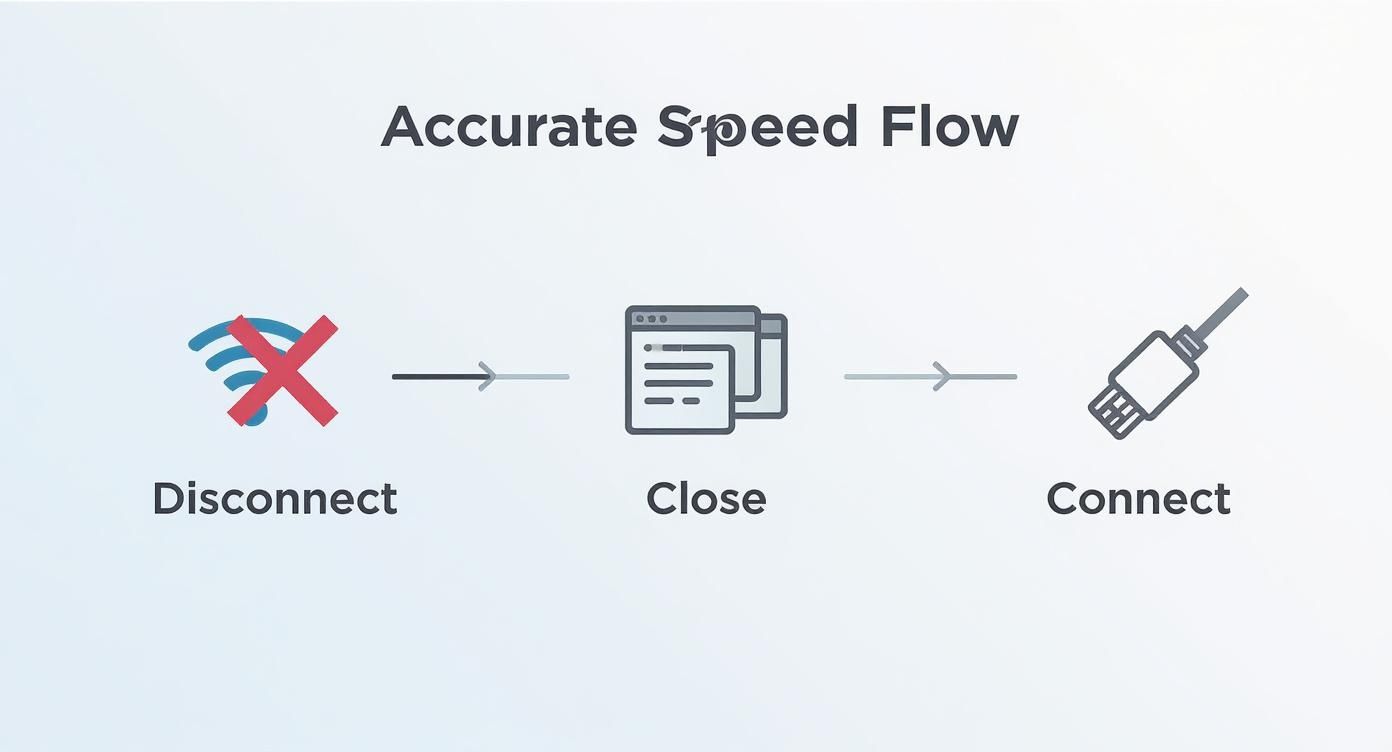
As you can see, unplugging other devices from your network and plugging your streaming device directly into your router with an Ethernet cable will give you the truest measure of your internet’s performance. This gives you a real baseline to work from.
To figure out if your download speed is up to the task, check out this simple breakdown. It shows the speeds you'll need for a smooth, buffer-free IPTV experience based on the quality you want.
| Streaming Quality | Minimum Recommended Download Speed (Mbps) | Ideal Recommended Download Speed (Mbps) |
|---|---|---|
| Standard Definition (SD) | 5 Mbps | 10 Mbps |
| High Definition (HD - 1080p) | 15 Mbps | 25 Mbps |
| Ultra HD (4K) | 25 Mbps | 50+ Mbps |
As a rule of thumb, having a connection that hits the "Ideal" speed gives you plenty of headroom. This means other people in your house can use the internet without causing your show to freeze up right at the good part.
When your speed test results don't match up with what you're paying for, it's tempting to point the finger straight at your Internet Service Provider (ISP). But more often than not, the real problem is lurking much closer to home.
Before you brace yourself for a long call with customer support, let's look at the usual suspects inside your own network that could be strangling your connection. Pinpointing these issues is the first real step toward getting that smooth, buffer-free IPTV stream you're after.
You wouldn't believe how much your router's location affects your Wi-Fi performance. If you've got it tucked away in a cabinet, banished to a basement corner, or crowded by other electronics, its signal is probably getting blocked or facing a ton of interference.
Think of Wi-Fi signals like light from a lamp—physical objects create "shadows" where the signal gets weak. For the best possible coverage, your router needs to be in a central, elevated spot, away from obstructions like thick walls, big metal appliances, or even a fish tank. A weak signal is a classic bottleneck, so it's a good idea to test your Wi-Fi signal strength and see if that's your culprit.
Technology moves at a blistering pace, and that trusty old router you've been using for years might not be cut out for today's internet speeds. Paying for a gigabit plan but using an ancient router is like putting premium fuel in a lawnmower engine—you're just not going to get the performance you paid for.
Upgrading to a newer model that supports modern standards like Wi-Fi 6 can make a night-and-day difference in both speed and reliability. The ASUS RT-AX1800S is a great, affordable option on Amazon that delivers excellent performance for streaming high-quality IPTV content.
A router upgrade is one of the single most effective changes you can make to improve your entire home network. It ensures all your devices, especially your IPTV player, get the strong, consistent signal they need for buffer-free streaming.
Sometimes, the issue isn't even the network but the streaming app itself. Over time, apps can get bogged down by accumulated data. For certain platforms, you might need to figure out how to clear the cache on Kodi or similar applications to get things running smoothly again. By tackling these common issues one by one, you can often solve your speed problems without ever having to call your ISP.
Running a speed test gives you a valuable baseline, but let’s be honest—achieving a truly buffer-free IPTV experience often means rolling up your sleeves and fine-tuning your home network. It’s time to move beyond just checking your speed and start actively managing your connection.
One of the most powerful tools in your arsenal is your router's Quality of Service (QoS) setting. Think of QoS as a traffic cop for your internet. It lets you tell your router which devices and apps get to go first. By giving your IPTV box top priority, you’re making sure it always gets the bandwidth it needs, even if someone else in the house starts gaming or downloading huge files.
It's worth saying again and again: for the best possible streaming stability, nothing beats a wired Ethernet connection. It cuts through the signal interference and congestion that can plague Wi-Fi, giving you a direct, stable pipeline straight to your IPTV device. It’s a simple change, but you’d be surprised how many buffering issues it can solve instantly.
To make a wired setup practical, these components may help:
Disclosure: As an Amazon Associate I earn from qualifying purchases.
These changes can remove some local-network bottlenecks, but they cannot increase the speed delivered by your internet plan or fix a slow content source. For a deeper troubleshooting sequence, see how to optimize your internet connection.
Even after you've run a speed test, you might still be scratching your head about the results. It happens. Let's walk through some of the most common questions that pop up and get you on the path to a smooth, buffer-free stream.
This is the big one, and it's a super common frustration. Internet providers always advertise their speeds with "up to" a certain number. Think of that as the absolute best-case scenario, achieved in a perfect lab setting.
Your real-world speed gets hit by all sorts of things: network congestion during peak hours (like when everyone in your neighborhood is streaming at night), an old router that can't keep up, or even just Wi-Fi interference from your neighbor's network.
Pro Tip: For the most accurate picture of what you're paying for, plug your computer directly into your router with an Ethernet cable and run a test during off-peak hours, like in the morning.
When you're settling in to watch IPTV, download speed is king. It's the metric that dictates how quickly your device can pull the video stream from the server.
A sluggish download speed is almost always the culprit behind that dreaded buffering wheel. As a rule of thumb, you should aim for at least 25 Mbps for a stable, high-definition experience. Anything less, and you're rolling the dice.
Yes, and you absolutely should! This is one of the most important troubleshooting steps you can take.
Many smart TVs and dedicated IPTV boxes have built-in web browsers or even dedicated speed test apps you can download. Running a test directly on the device you stream with cuts out all the guesswork. It shows you the actual speed reaching the box, which is the number that truly matters for your viewing experience.
After testing, compare the result with the current guidance from your legitimate streaming service. If wired speed is also consistently below your plan, document several tests and contact your internet provider; if only one app or source buffers, check that service's status and support guidance. If the problem survives a clean speed test, our IPTV troubleshooting decision tree walks you through isolating whether the fault sits with your device, your network, or the stream source.